ads

Slider[Style1]

Style2

Style3[OneLeft]

Style3[OneRight]

Style4

Style5

Safely clean the Registry with Auslogics Registry Cleaner

Let’s be honest: I’m not a big fan of Registry cleaning tools. Through the pages of Support Squad I’ve seen first-hand the damage they can do to perfectly functioning Windows systems.
They’re often billed as a magic cure for problems or promise performance improvements, but if you scan blindly and let a Registry cleaning tool simply delete everything it finds you’ll eventually run into trouble – and you won’t notice any speed boost either.
Despite all this, Registry cleaning tools can help fix problems by tracking down rogue entries and deleting them – the trick is knowing how to use them carefully.
In this tutorial, I’ll show you how to selectively search for, analyse and remove entries. Just as importantly, I’ll also reveal how to put them back again should your clean-out create more problems than it solves.
Safely clean the Registry with Auslogics Registry Cleaner

Install program

First, install Auslogics Registry Cleaner from your free disc. During installation you’ll be prompted to install Auslogics BoostSpeed alongside it; we recommend unticking this box. The next screen will offer you additional programs – verify ‘Custom install (advanced)’ is selected, with no additional boxes ticked, to skip installing them all. Click Next and the program will install.

Take precautions

Before proceeding any further, take a System Restore point: open the Start menu or press [Win] + [Q] to open the Search charm in Windows 8. Type ‘system restore’ and click ‘Create a restore point’ under Settings. Click ‘Create’, give your Restore point a suitable name and click ‘Create’ again to set up a fail-safe backup which you can restore should it prove necessary.

Pre-scan checklist

Switch back to Auslogics Registry Cleaner, then open the Settings menu to verify ‘Back Up Changes’ is ticked. The left-hand pane reveals which areas of the Registry have been selected for scanning – right-click this column and choose ‘Check Safe Only’ to ensure only safe areas are ticked for now. Once done, click the ‘Scan Now’ button and wait while the scan is performed.

Results overview
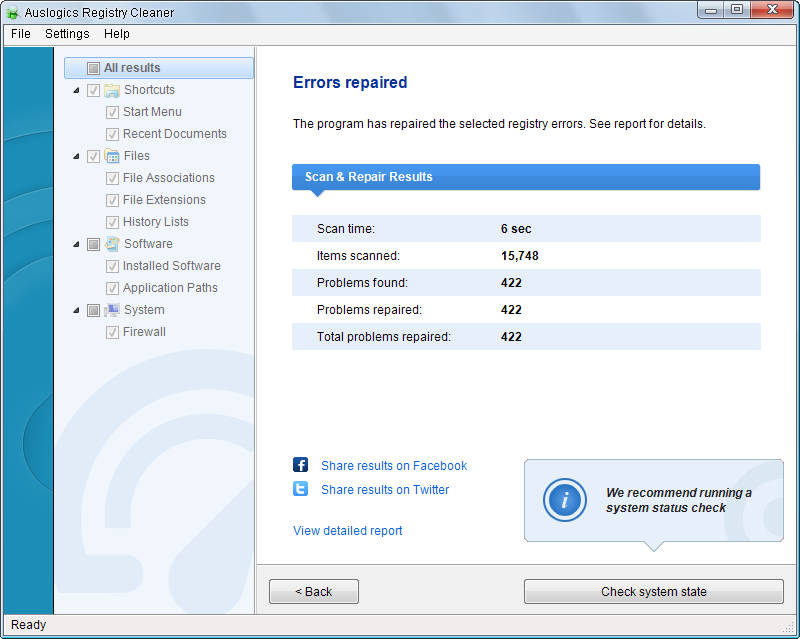
clean the Registry with Auslogics Registry Cleaner Don’t be alarmed at the hundreds or even thousands of ‘errors’ it finds – many of these can be left safely in place without any impact on your computer’s stability or performance. The results divide these into their parent categories; again, don’t worry about the levels of severity assigned to each section – remember that most of these errors have no detrimental effect.

Explore in depth

Use the annotation on the previous page to help identify problem entries. Most entries should yield some clue to their origin. Look for references to a specific program, or click the ‘Google it’ button to perform a search using that Registry keyor value, which may throw up people with similar problems and – if you’re really lucky – potential solutions to try.

Select all and repair
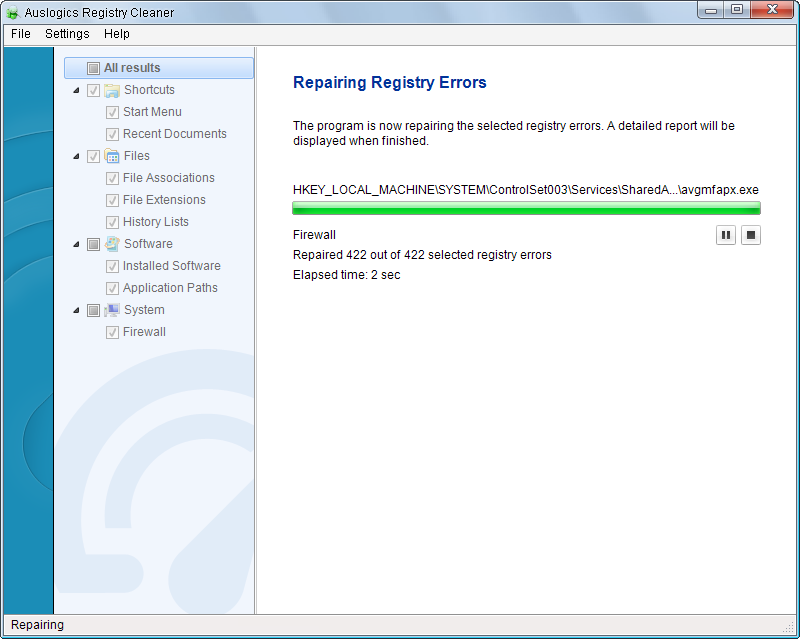
Safely clean the Registry with Auslogics Registry Cleaner By default, all problems are selected – clicking ‘Repair’ removes them all. If you’re unable to identify a specific Registry entry that you believe is causing your problem you could – with some risk – try removing them all. Click ‘Repair’, then reboot and analyse to see if the problem has gone. If it hasn’t, or other problems emerge, jump to step nine to restore the backup.

Be selective

Alternatively, right-click ‘All results’ and choose ‘Uncheck all’ to select nothing by default. Now manually place a tick next to the entries you wish to remove. When you’re done, verify ‘Back Up Changes’ is ticked, then click ‘Repair’ to remove only those entries you’ve selected. After the repair completes, click ‘View detailed report’ to see exactly what was deleted, if necessary.

Search for Registry keys

Select ‘View > Find Registry Keys’ to perform a manual examination of the Registry for keys to examine and potentially delete. Use the ‘Filter’ button before clicking ‘Search’ to restrict your search. Note that Auslogics Registry Cleaner provides no indication of whether a key is a problem or not; it simply returns all results. Manually select entries to delete, then ‘Clean up’.

Restore keys

Should you run into new problems after cleaning the Registry, select ‘File > Rescue Center’ to browse available backups and Restore points. Start by right-clicking your most recent backup and choosing ‘Restore’ – click ‘Yes’ to restore all deleted entries from that backup (you can’t choose single entries). If this fails to work, select ‘Restore Points’ and your System Restore file.

Registry cleaning made easy

Armed with these tips, you should now be able to safely remove Registry entries when the need arises – advanced users can go even further and include more ‘dangerous’ sections of the Registry, including ‘Missing Software’ and ‘Shared DLLs’, when scanning for problems. Note that indiscriminately cleaning these sections could cause major problems, so proceed with caution.

Read ebooks using Icecream Reader

Ebooks are a lot more convenient than printed matter (although obviously paper magazines are still fine, we’re bound to say). They’re a lot lighter for one thing – a bagful of hardback books can seriously weigh you down. 
While a fully loaded e-reader isslightly heavier than an empty one, due to the extra weight of trapped electrons in the storage media, it’s only in the region of a billionth of a billionth of a gram: not something that’s going to perturb even the strictest airline baggage allowance.
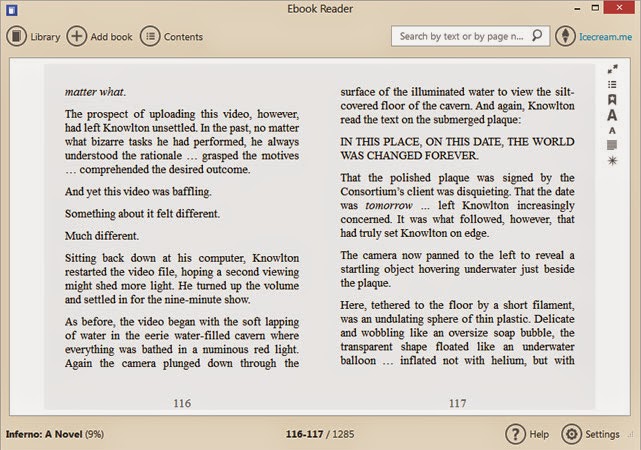
If you’re carrying a laptop, an ebook app for Windows is even lighter. Amazon’s Kindle app ties you in to the company’s ecosystem, but for non-Kindle owners who want to read ebooks on their PCs, the choice is a little broader. Here, we’ll show you how to discover the world of ebooks using the free Icecream Ebook Reader app.

Read ebooks using Icecream Reader

Get some books

Read ebooks using Icecream ReaderThe open EPUB ebook format is supported by many booksellers, including Waterstones and Barnes & Noble, but not Amazon. Many free classic and self-published titles are available in this format. Some ebooks are also available as PDF files, which ebook readers can also open. Out-of-copyright classics are available from Project Gutenberg (www.gutenberg.org).

Install Ebook Reader

Point your web browser to www.icecreamapps.com/Ebook-Reader and download and run the installer. Once done, run the app either by double-clicking its icon or by ticking the ‘Launch Icecream Ebook Reader’ box on the installer’s final page. It’s not a large application, but be aware that a library of ebooks can take up a decent chunk of space.

Add titles to library

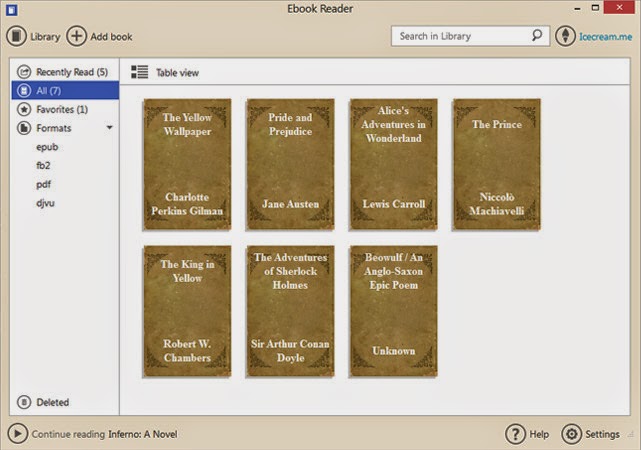
Your library is empty to begin with. The app doesn’t have a store from which you can buy books, so they need to be downloaded manually to your hard drive. It’s a good idea to save them in an Ebooks folder within Documents, so that they’re easy to manage, and so you can be sure they’re processed by any backup program you use. 
Use this simple, free ebook-reading app to enjoy literature from different periods and countries from the comfort of your PC.

Read it!

Read ebooks using Icecream ReaderFind somewhere comfortable to sit, make a cup of tea, and settle in to read. Navigating an ebook is easy. A click on the right edge of the page or a tap of the spacebar takes you forward a page. Click the left edge to go backwards. Alternatively, use the left and right arrow keys, Page Up and Page Down, or the mouse wheel. The Home and End keys jump to the start or end of a book.

Settings

Access Ebook Reader’s settings page by clicking the cogwheel icon at the bottom-right of the window. There are just two options. The bottom one sets the language in which the app is displayed, while the top enables you to choose a colour scheme: white for daylight, dark blue for night, and a sepia that’s closer to daylight but easier on the eyes over long periods.

Bookmarks

Bookmarking works just like its paper counterpart. When reading a book, click the icon with a star on it (towards the upper-right) to add a bookmark. You can manage bookmarks, or jump straight to a bookmarked page, by clicking the ‘bullet list’ icon at the top-right of the window. To search for text, type it into the box at the top of the window and press Return.

Other controls

There are additional controls alongside those for bookmarking. The top icon switches to full-screen mode. The capital ‘A’s change the text size, while the paragraph icon toggles between one or two columns of text. Narrower columns are easier to read, but a single wide one can help if pictures take up much of the page width. The last icon controls the colour scheme.

Delete a book

Removing a book from your library within the Ebook Reader app doesn’t remove it from your hard drive but does make it unavailable to read until you add it again. Go to your library, switch to Table view and click on the dustbin icon in the book‘s row. A dialogue will ask if you’re sure. If you are, click the OK
button to get rid of the incriminating evidence.

Read great comics for free

Dynamic and stylish, comics are a fantastic way to enjoy a story, with the dialogue, narration, art style and perspective all playing a part in developing the world and its characters. Finding great comics used to mean trawling through the crowded shelves of a (sometimes gloomy and strangesmelling) shop, but the Comics app by ComiXology puts them all at your fingertips, wherever you are.The app features over 30,000 comics and graphic novels from publishers including Marvel, DC and Image (the people behind X-Men, Superman and Spawn, respectively). You'll also find a wealth of comics by smaller publishers, making it a great way to find new titles and fresh ideas.Best of all, ComiXology’s app works on all your Windows 8 devices, so you can start reading one on your PC, then finish it later on the train using your tablet. Let’s get started!
Read comics for free

Get the app 

Open the Windows Store and searching for ‘ComiXology’.A few apps will appear, but you want the first in the list – simply called ‘Comics’. Select it and click ‘Install’. The app and many of the comics are free, but there are also paid-for titles available, so you can choose to set up payment options. When the app has installed, a notification appears at the top right. Click to launch it.

Find free comics 

The first time you open the app, you’ll see a notification asking if you want it to run in the background and place status notificationson your Lock Screen. Have a think and choose an option. You’re ready to choose somethingxp to read. There are lots of tempting new releases on the home screen, but let's start by selecting ‘Free comics’ and picking from the titles here.

Once you’ve read a comic, remember to rate it to help other app users decide whether to take the plunge .

 Get a preview

You’ll only see six free comics listed at first, but there are dozens more – use the arrow button beside ‘Recommended freebies’ to see them. Once you see one that takes your fancy, click it and you’ll be taken to its product page, which shows you its credits, publication date, number of pages and more. There’s also a brief description, followed by a preview.

Make an account 

Click the button labelled ‘Free’ to add the comic to your shopping cart, then click the cart icon at the top-right and select ‘Checkout’. You’ll now be prompted to create an account for the app, so enter your details. The email address you enter will be used to send you notifications when you buy and download new comics. When you’ve finished, click ‘Create’ and log in.

Enter card details (but don’t pay!) 

Although you’ve chosen a free comic, you’ll still be taken to a billing page and asked to enter credit card information. Don’t worry, your card won’t be charged – this step just makes it easier if you want to splash some cash in the future. Enter your details and click ‘Proceed’. The transaction will be processed and you’ll see a page featuring all the comics you own. Click ‘Read’.

Turn the pages 

Now the fun begins. You’ll see the cover of your comic with an arrow to the right, which you can click to turn the page. If you have a Windows 8 tablet, this would be a great time to start using it; holding the display in your hands and tapping the screen is much more like reading an actual comic book than clicking a mouse button.

Get dynamic

Double-click (or double-tap) the page you’re reading to enter Guided View. This is a brilliant feature exclusive to ComiXology’s app, which zooms in on sections of the comic in the same way your eyes would move if you were reading it on paper. It’s not available on every issue, but when it is, it’s a dramatic way to read a story.

Thanks to Comics by ComiXology, it’s never been easier to get a slice of the comic-book action.

Know your options 

Right-click the black background and three icons will appear in the bottom right: ‘i’ for information, ‘?’ for help, and a book icon that reveals a storyboard at the top of the screen, enabling you to hop quickly between pages. What did Superman say on page four? Ah yes, the knife was Kryptonite! At the top left you’ll see an arrow that will take you back to the app’s home page.

Browse and discover 

One of the best things about ComiXology’s app is how it simulates the experience of browsing through shelves of comics and flicking through the pages of whatever catches your eye. Choose a series and every book will appear on screen at once.If you enjoy one, it’s easy to go back and find the next in the series – and the next, and the next…

Fill your virtual shelves

Congratulations, you now know everything you need to download and enjoy world-class comics from some of the biggest (and smallest) publishers in the business. Many are free and even the paid-for ones rarely cost more than $10, so it’s an easy and affordable way to build up an impressive collection. And all without setting foot in a little shop smelling of musty carpet…

Free antivirus that still supports Windows XP

Microsoft no longer protects you in Windows XP, but there’s plenty of free security software that does. outlines the best antivirus tools for XP
Don’t be fooled by Microsoft’s recent U-turn on patching Windows XP. The surprise security fix for Internet Explorer 8 (the last internet explorer version that works with Windows XP) doesn’t mean that XP is now safe after all, or that the end of support for XP on 8 April was a big lie to get us all to upgrade to Windows 8. The internet explorer 8 patch on 1 May was a one-off, and it’s very unlikely there will be any more.
Microsoft will continue to update XP’s built-in security software, including Microsoft Security Essentials (http://bit.ly/1fxEN7D) and Windows Defender, and it still updates its virus definitionsin XP. But that just won’t cut it. Th  ese tools score far below many free alternatives in antivirus tests, so it’s dangerous to rely on them. One recent Windows Defender update on the internet even caused thousands of XP computers to crash at startup. As a result, Microsoft’s Technet forums were flooded with angry posts from Windows XP users (read them at http://bit.ly/1p9s6Zm). 
To stay safe in Windows XP, you need to build a solid wall of third-party security tools that do the job Microsoft no longer does. Antivirus companies are busy releasing and updating programs to meet demand from the Windows XP users that Microsoft has abandoned, so you have plenty to choose from.
Free antivirus that still supports Windows XP

Keep viruses off your XP PC

The best antivirus products that keep you safe in Windows XP come at a price. Premium suites Kaspersky Internet Security 2014 (www.kaspersky.co.uk), Norton Internet Security (uk.norton.com) and ESET Smart Security 7 (www.eset.co.uk) achieved the best results in the latest Home Antivirus Protection test by our security team at Dennis Technology Labs.
But right behind them were two completely free products: Avast Free Antivirus (www.avast.com) and AVG AntiVirus Free 2014 (http://bit.ly/1todjWi). Avast Free Antivirus is easy to use and very powerful security, with various scan levels that range from very fast to very thorough. Its database of virus definitions is updated constantly to give you ongoing protection, even against zero-day vulner abilities like the one Microsoft eventually patched on 1 May. Avast has pledged to support XP for at least another two years, which is great news to the 27 per cent of Avast users who still use XP and don’t plan to change. 
AVG AntiVirus Free is less powerful than Avast, but it also uses up much less processing power, so it’s ideal if your computer is a bit old or slow. AVG says it has “no plans to stop supporting XP users” and that XP will receive virus definitions “for the forseeable future”, which our Technology Labs team defines as 2016 or later. Read AVG’s statement at http://bit.ly/1BYABMz.
Try out all these programs to see which suits your needs best, but only keep one on your computer. If you have two security antivirus programs running at the same time they will conflict, eff ectively identifying each other as viruses and stopping either program from working properly. Having two antivirus programs is as bad as having no antivirus at all.

Find and remove malware

The outstanding security anti-malware program Malwarebytes Anti-Malware Free (www.malwarebytes.org) is designed to run alongside your antivirus, and won’t conflict with it. The new version of Malwarebytes includes “guaranteed lifetime support” for XP. Malwarebytes told Computeractive: “We will continue to support XP for as long as it’s technically possible. Th  at goes for our free version as well as premium. Twenty per cent of our users still run XP, and they shouldn’t have to pay to get protected.” Each time you open Malwarebytes it updates its database, so it won’t overlook any recent malware or PUPs (Potentially
Unwanted Programs), such as adware that slow down your computer and could be used by hackers to break into your PC.Select ‘Perform full scan’ the first time, then use the default ‘quick scan’ every week or two to keep your computer clean. It’s a portable program, so you can run it from the EXEfile on a USB stick to check for unwanted nasties on a friend or family member’s computer.

Block threats in Internet

Internet Explorer, Firefox and Chrome Web Of Trust (www.mywot.com/download) is a free add-on for internet explorer, Firefox and Chrome that uses a traffi c-lights system to warn you about phishinglinks, malicious sites and other traps. A green icon indicates that a link has excellent safety reports; amber is ‘unsatisfactory’ and red means ‘poor’. Red links are blocked by default, but you can still click them if you really want to. Web Of Trust is internet browser based and constantly updated, so it’ll always work in Windows XP.
A firewallis another essential weapon against threats from the web. Comodo Firewall Free (http://bit.ly/1zMP5KB) works alongside your antivirus and anti-malware programs and acts like a shield to protect you against threats like internet malware and zero-day attacks. Its current version still works in XP. 
Note that if you’re using Internet Explorer in XP you should be extra vigilant. Iinternet Explorer’s popularity makes it a prime target for hackers.

Top